• Tech Geek and More – Contact
  • Tech Geek and More – Privacy Policy
TGM
  • Home
  • News
  • How To
  • Social Media
    • Facebook
    • Instagram
    • WhatsApp
    • Twitter
  • Hardware
  • Software
    • Android
    • Apple
    • Microsoft
    • Browser
    • Recommended
  • The Web
    • Data Breach
    • Deals – Free / Cheap
    • Hacking
    • Live Streams
    • Network Security
    • Online Shopping
      • Amazon
      • Groupon
      • Living Social
      • Walmart
      • Woot
    • Privacy
    • Security
    • Scams
    • Virus And Malware Help
  • Gaming
    • Xbox
    • Nintendo
    • PlayStation
    • ELEAGUE
    • E3
  • And More
No Result
View All Result
  • Home
  • News
  • How To
  • Social Media
    • Facebook
    • Instagram
    • WhatsApp
    • Twitter
  • Hardware
  • Software
    • Android
    • Apple
    • Microsoft
    • Browser
    • Recommended
  • The Web
    • Data Breach
    • Deals – Free / Cheap
    • Hacking
    • Live Streams
    • Network Security
    • Online Shopping
      • Amazon
      • Groupon
      • Living Social
      • Walmart
      • Woot
    • Privacy
    • Security
    • Scams
    • Virus And Malware Help
  • Gaming
    • Xbox
    • Nintendo
    • PlayStation
    • ELEAGUE
    • E3
  • And More
No Result
View All Result
TGM
No Result
View All Result

Question On Installing macOS Big Sur After Download

Alex by Alex
August 29, 2026
Home Software Apple
Share on Facebook
Share on Twitter

Question – I downloaded macOS Big Sur and install shows on the dock but nothing happens. If this is happening, here is what you can do.

A visitor to the Tech Geek and More Facebook Page (@TGMTechGeekandMore) posted a question about an issue with the macOS Big Sur installation.  According to site visitor Pawee, they have downloaded Big Sur and they see the install file, but “Nothing Happens”.

big sur install question

If you are having the same issue, this post will go over what you can do.

Question On Installing macOS Big Sur After Download

After The Big Sur Download 

So you have downloaded Big Sur, and you see it on the dock but nothing happens. So what can you do? No particular reason why this happens, it just happens. You seem to have downloaded macOS Big Sur, and then it gets stuck during the installation process, or the installation process won’t start when you click the Big Sur installation icon.

big sur install icon


Make Sure Your Device Is Compatible 

Per Apple, Here is the official list of compatible devices:

  • MacBook — 2015 and later.
  • MacBook Air — 2013 and later.
  • MacBook Pro — Late 2013 and later.
  • Mac mini — 2014 and later.
  • iMac — 2014 and later.
  • iMac Pro — 2017 and later (all models).
  • Mac Pro — 2013 and later.

To see what year your device was made, click on the apple icon on the top left and select About This Mac. There you will find the model and year for your machine.
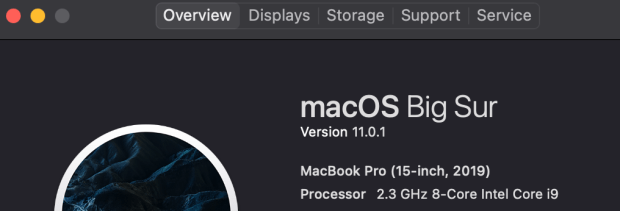
About This Mac


Check The Free Hard Drive Space 

Start by checking how much free space you have left on your machine. From experience, all macOS updates require plenty of space to allow install. For macOS Big Sur, Apple recommends a minimum of 35.5GB available storage on macOS Sierra or later*. To check hard drive space, click on the Apple icon on the top left of your screen, then select About This Mac.

  • When About This Mac Opens, select the tab that says Storage. There you will see what space you have left.  If you want to do clean up to get more space, you can click on the manage button on the right side.

about this mac

  • From the manage button, in the new window, you will find different choices. Look in applications, and also under documents. If you see something you use or need anymore, you can highlight it and select delete from the lower right corner of the window.


about this mac management


Reboot Your Computer 

Once you have made enough space on your hard drive, try your install. If it still isn’t working, do something simple, REBOOT. It could be possible that there is a service or application currently running that is preventing the update from running. Once you have done the reboot, don’t open any other programs (not the time to see what’s on YouTube, it’s time to do an install). Go ahead and try to run the macOS Big Sur install.


Reboot Into Safe Mode 

So you have tried all of the steps above and still no go. The next thing to try is rebooting into Safe Mode. To use safe mode, hold down Shift, and go thru the entire restart process while holding down the shift button. This will start macOS with just the minimal files to operate. This is again done to try and run the install with no other program interfering. Once in safe mode, try to do the install again.


Try Resetting NVRAM 

If you have gotten to this point, and you still can’t install macOS Big Sur, we have a couple of more things to try. The next thing to try is resetting the NVRAM. To do this follow these steps

  • Shut down your Mac
  • This next step is interesting to do. Hold down Option + Command + P + R and power on your machine. Keep holding those 4 buttons until you hear a DING sound.

mac nvram reset


  • Now release the 4 buttons and wait until your Mac restarts and try reinstalling macOS Big Sur.


Start Over With Download  

If you have tried all of the steps and you still can’t get the macOS Big Sur to run, then it is possible that something got corrupted within the download. At this point, the only option left is to go to the Launchpad window (where you see all of your installed applications) and look for the install file listed and delete it.

icon install macos big sur

Once deleted, reboot, and then go back to System Preferences, Software Updates and start over by downloading the update again. (Sorry!)
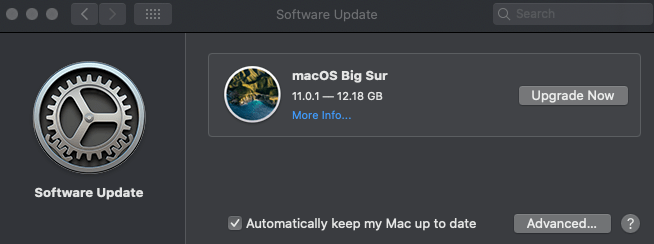
macOS Big Sur Download


Final Thought 

Hopefully, the install happens without going through all of these steps. Usually, computers play nice, but sometimes it’s a battle. If you come across any tech battles, you can drop us a line here on the website Under Contact Tech Geek and More, drop us a line via FB or Twitter, or email us at techgeekandmore @ gmail.com


Source

  • Hard Drive Space Info – Apple: macOS How To Upgrade 


Question On Installing macOS Big Sur After Download

Share this:

  • Share on Facebook (Opens in new window) Facebook
  • Print (Opens in new window) Print
  • Share on LinkedIn (Opens in new window) LinkedIn
  • Share on Reddit (Opens in new window) Reddit
  • Share on Pinterest (Opens in new window) Pinterest
  • Share on Tumblr (Opens in new window) Tumblr
  • Share on Telegram (Opens in new window) Telegram
  • Share on WhatsApp (Opens in new window) WhatsApp
  • Email a link to a friend (Opens in new window) Email
  • Share on X (Opens in new window) X

Like this:

Like Loading…
Tags: AppleHow TomacOSmacOS Big SurmacOS Big Sur InstallmacOS Big Sur Install IssuesOSTechTech Geek and More
Alex

Alex

30 years of professional experience with technology. Experience with technology implementation and systems management at numerous 5 Star Hotels, and Stadiums across North America. Head of Tech Geek and More since 2009

Related Posts

How To
Apple

How To: Opting Out Of Apple Analytics

September 13, 2026
How To
Apple

How To: Requesting Access As Apple Legacy Contact

September 9, 2026
How To
Apple

How To: Set Up Legacy Apple Account

September 9, 2026
Next Post
How To: Fix Headphones Not Working Chromebook

How To: Fix Headphones Not Working Chromebook

Leave a ReplyCancel reply

This site uses Akismet to reduce spam. Learn how your comment data is processed.

TGM Logo

Search

No Result
View All Result

Support Tech Geek and More (Via PayPal)

For those who wish to donate to TGM, just click this link. It will take you to our TGM Paypal page. 

iDrive Online Backup (AD)

Authorized Reseller

Recent Posts

  • How To: Opting Out Of Apple Analytics
  • News: YouTube TV Removing Channels
  • How To: Requesting Access As Apple Legacy Contact
  • How To: Set Up Legacy Apple Account
  • Alert: Zoom Services Reporting Issues (Resolved)

Recent Comments

  • Marlize on Nintendo Reporting Unauthorized Login to “Nintendo Network ID”
  • anovelo on How to resolve SD Card issues (For Windows and Mac)
  • Lucas bray on How to resolve SD Card issues (For Windows and Mac)
  • faith atienza on How to resolve SD Card issues (For Windows and Mac)
  • francesc on Getting the Iomega USB floppy drive working on newer Windows OS

Categories

Archives

Calendar

September 2026
M T W T F S S
 123456
78910111213
14151617181920
21222324252627
282930  
« Jan    
Facebook Twitter Pinterest RSS

Tags

2FA alert Amazon android Apple Best Buy breach Data Breach Deal Deal Alert Deal of the Day Facebook FB Gaming Google Hacking How To Instagram iOS iPad iPhone Mac macOS Microsoft MS News outage Sale Scam security social media Software T-Mobile Tech Tech Geek and More TGM Twitter two factor authentication Web Windows Windows 10 Xbox Xbox Game Pass xbox live YouTube

Pages

  • Tech Geek and More – Privacy Policy
  • About Tech Geek and More
  • Tech Geek and More – Contact

TGM Categories

TGM Archives

RSS feed: TGM RSS TGM RSS

  • How To: Opting Out Of Apple Analytics
    Concerns You Should Have With Data Collection People don’t realize how much of their data is collected by BIG TECH companies.  In most cases, tech companies have their settings automatically set to on (opt in), and it’s up to the end user to find and turn the settings off (opt out). This post will review […]
  • News: YouTube TV Removing Channels
    YouTube TV Removing Channels From Its Lineup YouTube TV has notified subscribers that it will be removing 3 channels from its lineup as of September 30, 2026. Today’s post will go over the announcement. What Is Being Removed  According to the announcement released by YouTube TV, they will be removing Court TV The Young Turks […]
  • How To: Requesting Access As Apple Legacy Contact
    As An Apple Legacy Contact Being a Legacy Contact is the most secure way for someone to give you access to the data stored in their Apple Account after their death. In a previous TGM post, we reviewed How To Set Up a Legacy Apple Account. In this post, we will review what you need […]

© 2009 - 2026 TGM - Tech Geek and More - Making Technology Easy TGM.

Manage Consent
To provide the best experiences, we use technologies like cookies to store and/or access device information. Consenting to these technologies will allow us to process data such as browsing behavior or unique IDs on this site. Not consenting or withdrawing consent, may adversely affect certain features and functions.
Functional Always active
The technical storage or access is strictly necessary for the legitimate purpose of enabling the use of a specific service explicitly requested by the subscriber or user, or for the sole purpose of carrying out the transmission of a communication over an electronic communications network.
Preferences
The technical storage or access is necessary for the legitimate purpose of storing preferences that are not requested by the subscriber or user.
Statistics
The technical storage or access that is used exclusively for statistical purposes. The technical storage or access that is used exclusively for anonymous statistical purposes. Without a subpoena, voluntary compliance on the part of your Internet Service Provider, or additional records from a third party, information stored or retrieved for this purpose alone cannot usually be used to identify you.
Marketing
The technical storage or access is required to create user profiles to send advertising, or to track the user on a website or across several websites for similar marketing purposes.
  • Manage options
  • Manage services
  • Manage {vendor_count} vendors
  • Read more about these purposes
View preferences
  • {title}
  • {title}
  • {title}
No Result
View All Result
  • Home
  • News
  • How To
  • Social Media
    • Facebook
    • Instagram
    • WhatsApp
    • Twitter
  • Hardware
  • Software
    • Android
    • Apple
    • Microsoft
    • Browser
    • Recommended
  • The Web
    • Data Breach
    • Deals – Free / Cheap
    • Hacking
    • Live Streams
    • Network Security
    • Online Shopping
      • Amazon
      • Groupon
      • Living Social
      • Walmart
      • Woot
    • Privacy
    • Security
    • Scams
    • Virus And Malware Help
  • Gaming
    • Xbox
    • Nintendo
    • PlayStation
    • ELEAGUE
    • E3
  • And More

© 2009 - 2026 TGM - Tech Geek and More - Making Technology Easy TGM.

Go to mobile version
%d